Showing posts with label Google Play. Show all posts

Wednesday, January 16, 2013

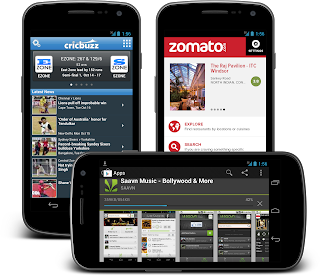
Android Developer Story: Smule

Check out our latest Android developer story, this one from Smule, creators of AutoRap, Magic Piano, and Songify.


In this short video, the Smule team talks about their experiences launching on Android, the explosive global growth they’ve seen on Google Play, and some of the techniques they use to market and monetize their products effectively across the world.


Visit the Spotlight pages in the Android Developers site to see our growing list of developer stories.


Friday, December 21, 2012

Localize Your Promotional Graphics on Google Play

Posted by Ellie Powers, Product Manager on the Google Play team


Google Play is your way to reach millions and millions of Android users around the world. In fact, since the start of 2011, the number of countries where you can sell apps has increased from 30 to over 130 — including most recently, the launch of paid app support in Israel, Mexico, the Czech Republic, Poland, Brazil and Russia, and fully two-thirds of revenue for apps on Google Play comes from outside of the United States.


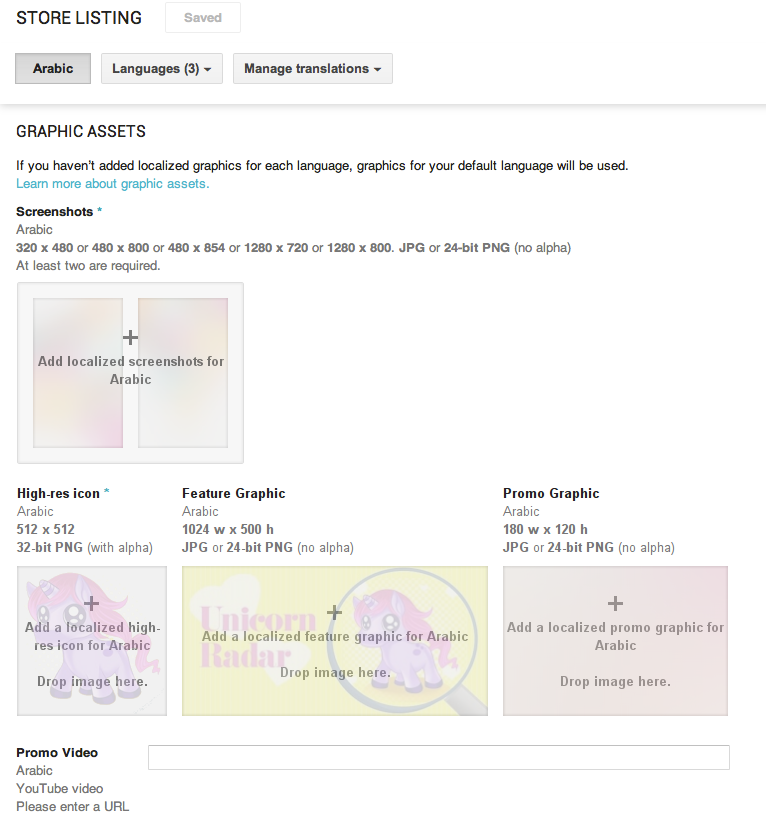
To help you capitalize on this growing international audience, it’s now even easier to market your apps to users around the world, by adding images and a video URL to your Google Play store listing for each of Google Play’s 49 languages, just as you’ve been able to add localized text.


A localized feature graphic can show translated text or add local flavor to your app — for example, changing its theme to reflect local holidays. Always make sure that your feature graphic works at different sizes.


Once you’ve localized your app, you’ll want to make sure users in all languages can understand what your app does and how it can benefit them. Review the graphics guidelines and get started with localized graphics.


Localized screenshots make it clear to the user that they’ll be able to use your app in their language. As you’re adding localized screenshots, remember that a lot of people will be getting new tablets for the holidays, and loading up with new apps, so you’ll want to include localized tablet screenshots to show off your tablet layouts.


With localized videos, you can now include a language-appropriate voiceover and text, and of course show the app running in the user’s language.


Ready to add localized images and videos to your store listing? To add localized graphics and video to your apps, you need to use the Google Play Developer Console preview — once you add localized graphics, you won’t be able to edit the app using the old version anymore. Those of you who use APK Expansion Files will now want to try the new Developer Console because it now includes this feature. We’ll be adding support for Multiple APK very soon. Once you’ve saved your application in the new Developer Console, automated translations become available to users on the web and devices — with no work from you.


What are you doing to help your app reach a global audience?


Friday, October 19, 2012

Google Play Seller Support in India

Posted by Ibrahim Elbouchikhi, Product Manager on the Google Play team


Over the past year, Android device activations in India have jumped more than 400%, bringing millions of new users to Google Play and driving huge increases in app downloads. In the last six months, Android users in India downloaded more apps than in the previous three years combined, and India has rocketed to become the fourth-largest market worldwide for app downloads. To help developers capitalize on this tremendous growth, we are launching Google Play seller support in India.


Starting today, developers in India can sell paid applications, in-app products, and subscriptions in Google Play, with monthly payouts to their local bank accounts. They can take advantage of all of the tools offered by Google Play to monetize their products in the best way for their businesses, and they can target their products to the paid ecosystem of hundreds of millions of users in India and across the world.


If you are an Android developer based in India, you can get started right away by signing in to your Developer Console and setting up a Google Checkout merchant account. If your apps are already published as free, you can monetize them by adding in-app products or subscriptions. For new apps, you can publish the apps as paid, in addition to selling in-app products or subscriptions.


When you’ve prepared your apps and in-app products, you can price them in any available currencies, publish, and then receive payouts and financial data in your local currency. Visit the developer help center for complete details.


Along with seller support, we're also adding buyer’s currency support for India. We encourage developers everywhere to visit your Developer Console as soon as possible to set prices for your products in Indian Rupees and other new currencies (such as Russian Rubles).


Stay tuned for more announcements as we continue to roll out Google Play seller support to many more countries around the world.


Tuesday, October 16, 2012

New Google Play Developer Console Available to Everyone

Posted by Eva-Lotta Lamm, Riccardo Govoni, and Ellie Powers of the Google Play team


We've been working on a new Google Play Developer Console, centered around how you make and publish apps, to create a foundation for the exciting features we have planned for the future. Earlier this year at Google I/O, we demoed the new version (video). Since then, we've been testing it out with tens of thousands of developers, reviewing their feedback and making adjustments.


Today, we’re very happy to announce that all developers can now try the new Google Play Developer Console. At its core, the Developer Console is how you put your app in front of hundreds of millions of Android users around the world, and track how your app is doing. We hope that with a streamlined publishing flow, new language options, and new user ratings statistics, you’ll have better tools for delivering great Android apps that delight users.


Sleeker, faster, easier to navigate


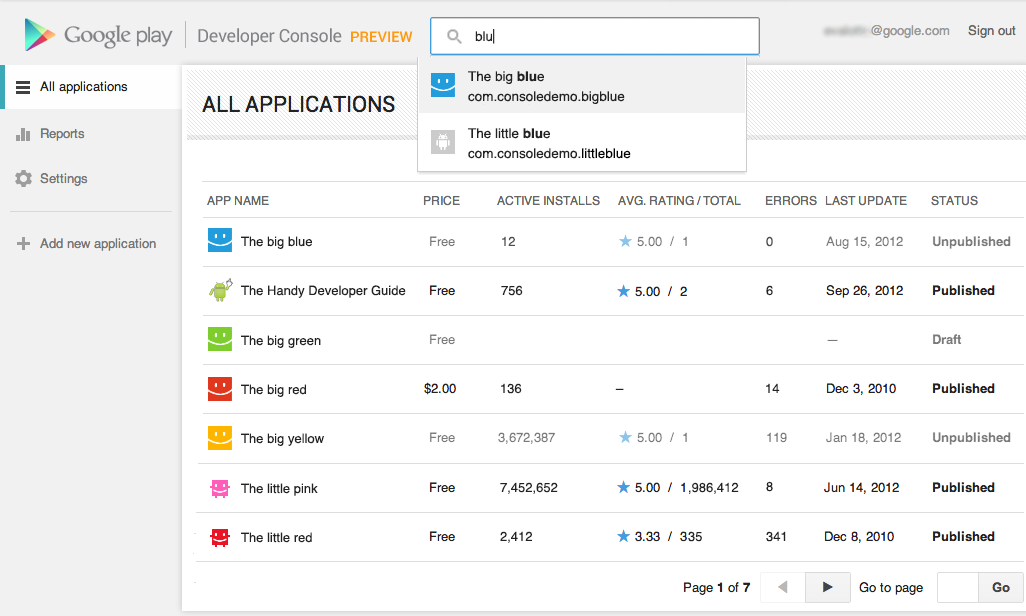
You spend a lot of time in the Developer Console, so we overhauled the interface for you. It's bright and appealing to look at, easy to find your way around using navigation and search, and it loads quickly even if you have a lot of apps.


Designed for speed. Quickly locate the app data and business information you use every day. More screenshots »


Track user ratings over time, and find ways to improve


One of the most important things you'll be able to do is track the success of your app over time — it's how you continue to iterate and make beautiful, successful apps. You'll see new statistics about your user ratings: a graph showing changes over time, for both the all-time average user rating and new user ratings that come in on a certain day. As with other statistics, you'll be able to break down the data by device, country, language, carrier, Android version, and app version. For example, after optimizing your app for tablets, you could track your ratings on popular tablets.


New charts for user ratings. You can now track user ratings over time and across countries. More screenshots »


Better publishing workflow


We've completely revamped and streamlined the app publishing process to give you more time to build great apps. You can start with either an APK or an app name, and you can save before you have all of the information. You can also now see differences between the new and old versions of an app, making it easy to catch unintentional changes before you publish a new version to your users.


More languages for listings, with automated translations


You'll also enjoy a new app publishing flow and the ability to publish your app listing in 49 languages. Once you've saved any change to your application in the new Developer Console, your users will have the option of viewing an automatic translation of your listing on the web today and soon on devices — no additional action on your part is needed.


How can you try the new version?


Go to your Developer Console and click on “Try the new version” in the header or go directly to the new version. If you prefer the new version, don't forget to bookmark the new URL.


Please note that we're not quite done yet, so the following advanced features are not yet supported in the new Google Play Developer Console: multiple APK support, APK Expansion Files and announcements. To use these features, you can click “Switch back” in the header at any time to return to the old version.


Click the “Feedback” link in the header to let us know what you think, so that we can continue to improve your experience as a Google Play developer. Thank you for all of the feedback so far.


Tuesday, October 9, 2012

Building Quality Tablet Apps

Posted by Reto Meier, Android Developer Relations Tech Lead


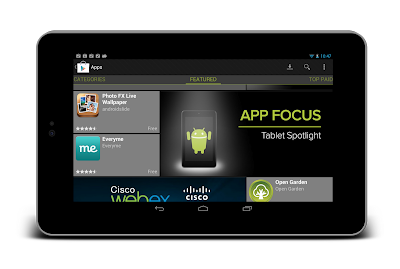
With the release of Nexus 7 earlier this year, we shared some tips on how you can get your apps ready for a new wave of Android tablets. With the holiday season now approaching, we’re creating even more ways for great tablet apps to be featured in Google Play - including a series of new app collections that highlight great apps specifically for tablet users.


To help you take advantage of the opportunity provided by the growing tablet market, we’ve put together this Tablet App Quality Checklist to make it easier for you to ensure your app meets the expectations of tablet users.


The checklist includes a number of key focus areas for building apps that are a great experience on tablets, including:

  • Optimizing your layouts for larger screens

  • Taking advantage of extra screen area available on tablets

  • Using Icons and other assets that are designed for tablet screens


Each focus area comprises several smaller tasks or best practices. As you move through the checklist, you'll find links to support resources that can help you address the topics raised in each task.


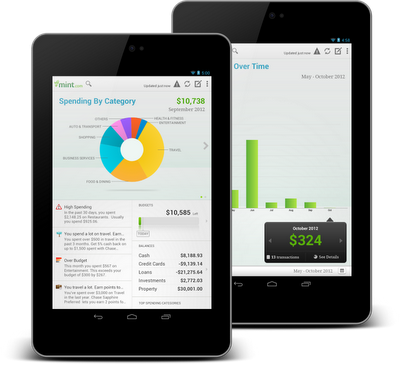
The benefits of building an app that works great on tablets is evident in the experiences of Mint.com, Tiny Co, and Instapaper who reported increased user engagement, better monetization, and more downloads from tablet users. You can find out more about their experience in these developer case studies.


The Tablet Quality Checklist is a great place to get started, but it’s just the beginning. We’ll be sharing more tablet development tips every day this week on +Android Developers. In Android Developers Live, Tuesday’s Android Design in Action broadcast will focus on optimizing user experience for tablets, on Thursday we’ll be interviewing our tablet case studies during Developers Strike Back, and on Friday’s live YouTube broadcasts of The App Clinic and Friday Games Review will be reviewing apps and games on Android tablets.


What are your best tips for building great

tablet apps?


Join the discussion on

+Android Developers


Thursday, September 27, 2012

Google Play services and OAuth Identity Tools

Posted by Tim Bray

The rollout of Google Play services to all Android 2.2+ devices worldwide is now complete, and all of those devices now have new tools for working with OAuth 2.0 tokens. This is an example of the kind of agility in rolling out new platform capabilities that Google Play services provides.

Why OAuth 2.0 Matters

The Internet already has too many usernames and passwords, and they don’t scale. Furthermore, your Android device has a strong notion of who you are. In this situation, the industry consensus is that OAuth 2.0 is a good choice for the job, offering the promise of strong security minus passwords.

Google Play services make OAuth 2.0 authorization available to Android apps that want to access Google APIs, with a good user experience and security.

Typically, when you want your Android app to use a Google account to access something, you have to pick which account on the device to use, then you have to generate an OAuth 2.0 token, then you have to use it in your HTTP-based dialogue with the resource provider.

These tasks are largely automated for you if you’re using a recent release of the Google APIs Client Library for Java; the discussion here applies if you want to access the machinery directly, for example in sending your own HTTP GETs and POSTs to a RESTful interface.

Preparation

Google Play services has just started rolling out, and even after the rollout is complete, will only be available on compatible Android devices running 2.2 or later. This is the vast majority, but there will be devices out there where it’s not available. It is also possible for a user to choose to disable the software.

For these reasons, before you can start making calls, you have to verify that Google Play services is installed. To do this, call isGooglePlayServicesAvailable(). The result codes, and how to deal with them, are documented in the ConnectionResult class.

Choosing an Account

This is not, and has never been, rocket science; there are many examples online that retrieve accounts from Android’s AccountManager and display some sort of pick list. The problem is that they all have their own look and feel, and for something like this, which touches on security, that’s a problem; the user has the right to expect consistency from the system.

Now you can use the handy AccountPicker.newChooseAccountIntent() method to give you an Intent; feed it to startActivityForResult() and you’ll launch a nice standardized user experience that will return you an account (if the user feels like providing one).

Two things to note: When you’re talking to these APIs, they require a Google account (AccountManager can handle multiple flavors), so specify GoogleAuthUtil.GOOGLE_ACCOUNT_TYPE argument as the value for the allowableAccountTypes argument. Second, you don’t need an android.accounts.Account object, you just use the email-address string (available in account.name) that uniquely identifies it.

Getting a Token

There’s really only one method call you need to use, GoogleAuthUtil.getToken(). It takes three arguments: a Context, an email address, and another string argument called scope. Every information resource that is willing to talk OAuth 2.0 needs to publish which scope (or scopes) it uses. For example, to access the Google+ API, the scope is oauth2:https://www.googleapis.com/auth/plus.me. You can provide multiple space-separated scopes in one call and get a token that provides access to all of them. Code like this might be typical:

  private final static String G_PLUS_SCOPE = 
"oauth2:https://www.googleapis.com/auth/plus.me";
private final static String USERINFO_SCOPE =
"https://www.googleapis.com/auth/userinfo.profile";
private final static String SCOPES = G_PLUS_SCOPE + " " + USERINFO_SCOPE;

In an ideal world, getToken() would be synchronous, but three things keep it from being that simple:

  1. The first time an app asks for a token to access some resource, the system will need to interact with the user to make sure they’re OK with that.


  2. Any time you ask for a token, the system may well have a network conversation with the identity back-end services.


  3. The infrastructure that handles these requests may be heavily loaded and not able to get you your token right away. Rather than keeping you waiting, or just failing, it may ask you to go away and come back a little later.


The first consequence is obvious; you absolutely can’t call getToken() on the UI thread, since it’s subject to unpredictable delays.

When you call it, the following things can happen:

  • It returns a token. That means that everything went fine, the back-end thinks the authorization was successful, and you should be able to proceed and use the token.


  • It throws a UserRecoverableAuthException, which means that you need to interact with the user, most likely to ask for their approval on using their account for this purpose. The exception has a getIntent() method, whose return value you can feed to startActivityForResult() to take care of that. Of course, you’ll need to be watching for the OK in the onActivityResult() method.


  • It throws an IOException, which means that the authorization infrastructure is stressed, or there was a (not terribly uncommon on mobile devices) networking error. You shouldn’t give up instantly, because a repeat call might work. On the other hand, if you go back instantly and pester the server again, results are unlikely to be good. So you need to wait a bit; best practice would be the classic exponential-backoff pattern.


  • It throws a GoogleAuthException, which means that authorization just isn’t going to happen, and you need to let your user down politely. This can happen if an invalid scope was requested, or the account for the email address doesn’t actually exist on the device.


Here’s some sample code:

       try {
// if this returns, the OAuth framework thinks the token should be usable
String token = GoogleAuthUtil.getToken(this, mRequest.email(),
mRequest.scope());
response = doGet(token, this);

} catch (UserRecoverableAuthException userAuthEx) {
// This means that the app hasn't been authorized by the user for access
// to the scope, so we're going to have to fire off the (provided) Intent
// to arrange for that. But we only want to do this once. Multiple
// attempts probably mean the user said no.
if (!mSecondTry) {
startActivityForResult(userAuthEx.getIntent(), REQUEST_CODE);
response = null;
} else {
response = new Response(-1, null, "Multiple approval attempts");
}

} catch (IOException ioEx) {
// Something is stressed out; the auth servers are by definition
// high-traffic and you can't count on 100% success. But it would be
// bad to retry instantly, so back off
if (backoff.shouldRetry()) {
backoff.backoff();
response = authenticateAndGo(backoff);
} else {
response =
new Response(-1, null, "No response from authorization server.");
}

} catch (GoogleAuthException fatalAuthEx) {
Log.d(TAG, "Fatal Authorization Exception");
response = new Response(-1, null, "Fatal authorization exception: " +
fatalAuthEx.getLocalizedMessage());
}

This is from a sample library I’ve posted on code.google.com with an AuthorizedActivity class that implements this. We think that some of this authorization behavior is going to be app-specific, so it’s not clear that this exact AuthorizedActivity recipe is going to work for everyone; but it’s Apache2-licensed, so feel free to use any pieces that work for you. It’s set up as a library project, and there’s also a small sample app called G+ Snowflake that uses it to return some statistics about your Google+ posts; the app is in the Google Play Store and its source is online too.

Registering Your App

Most services that do OAuth 2.0 authorization want you to register your app, and Google’s are no exception. You need to visit the Google APIs Console, create a project, pick the APIs you want to access off the Services menu, and then hit the API Access tab to do the registration. It’ll want you to enter your package name; the value of the package attribute of the manifest element in your AndroidManifest.xml.

Also, it’ll want the SHA1 signature of the certificate you used to sign your app. Anyone who’s published apps to Google Play Apps knows about keystores and signing. But before you get there, you’ll be working with your debug-version apps, which are signed with a certificate living in ~/.android/debug.keystore (password: “android”). Fortunately, your computer probably already has a program called “keytool” installed; you can use this to get the signature. For your debug version, a correct incantation is:

keytool -exportcert -alias androiddebugkey -keystore ~/.android/debug.keystore -v -list

This will print out the SHA1 signature in a nicely labeled easy-to-cut-and-paste form.

This may feel a little klunky, but it’s worth it, because some magic is happening. When your app is registered and you generate a token and send it to a service provider, the provider can check with Google, which will confirm that yes, it issued that token, and give the package name of the app it was issued to. Those of you who who’ve done this sort of thing previously will be wondering about Client IDs and API Keys, but with this mechanism you don’t need them.

Using Your Token

Suppose you’ve registered your app and called GoogleAuthUtil.getToken() and received a token. For the purposes of this discussion, let’s suppose that it’s “MissassaugaParnassus42”. Then all you need to do is, when you send off an HTTP request to your service provider, include an HTTP header like so:

Authorization: Bearer MissassaugaParnassus42

Then your HTTP GETs and POSTs should Just Work. You should call GoogleAuthUtil.getToken() to get a token before each set of GETs or POSTs; it’s smart about caching things appropriately, and also about dealing with token expiry and refresh.

Once again, as I said at the top, if you’re happy using the Google APIs Client Library for Java, it’ll take care of all the client-side stuff; you’ll still need to do the developer console app registration.

Otherwise, there’s a little bit of coding investment here, but the payoff is pretty big: Secure, authenticated, authorized, service access with a good user experience.


Join the discussion on

+Android Developers