Showing posts with label How to. Show all posts

Saturday, January 12, 2013

How to boost internet speed by 20% without any software


Increase internet speed by 20% without any software –

Microsoft reserves 20% of your available bandwidth for their own purposes like Windows Updates and interrogating your PC etc. By unreserving this bandwidth, you can make your internet connection faster. By 20%. The steps to do so are –

1. Click Start then Run and type "gpedit.msc" without quotes.

2. Then go to Local Computer Policy>Computer Configuration>Administrative Templetes>Network>QoS Packet Scheduler. Click on QoS Packet Scheduler. In the right side , find Limit Reservable Bandwidth and double click on Limit Reservable Bandwidth.

3. It will say it is not configured but the truth is under the ‘Explain’ tab. Select ‘Enable’ and set reservable bandwidth to zero.

4. Click on ‘Apply’ and your internet speed will boost up by 20%.

Saturday, December 15, 2012

How to create facebook Chat codes

Have you seen People sending Smiles and images that are not part of Facebook Traditional chat codes.
Here in this post You will see how easy it is to create these codes and Impress you Facebook friends
Like, The best part is you can create your Unique codes . You can create codes of any image stored in you computer, by following these steps

Follow these Steps :- 
1. Go to Smileyti

2. Click on "Browse" and select The  picture you want to use in facebook chat.

3. Enter captcha code.[If you get one]

4. Click on "Upload Now" .

5. It will generate code in few seconds in This form<< [[512585645451273]] [[512585638784607]] >>
Copy The code
   
6. Paste it in facebook chat and hit enter.
 DONE :D


Friday, August 17, 2012

8 ways to access blocked websites

1. Using IP instead of URL

2. Redirection with short URL service

3. Google cache

Search engines like Google and Yahoo cache webpages and these cached pages are stored in search engines themselves, which likely will be added to the blocked list. Click on the ‘cache’ will bring you to a cache version of the page, as updated as how Google caches it.

4. Internet Archive – Wayback Machine

Wayback Machine is a internet service that periodically keeps a copy of almost all websites in the Internet way from the date they’re started. Clicking on the latest copy of what Wayback Machine have should be somewhat similar to the real site.

5. Anonymous surfing

- Hidemyass.com
- anonymizer.com
- wujie.net
- ultrareach.net


6. Use Proxy in Browsers

7. Bypass with translation services

Use Google translate. Open Google translate ,type the URL and translate page.

8. Retrieve web pages via Email

Web2Mail is a free service that sends websites you want to read right into your inbox. All you need to do is send an email to www@web2mail.com with the URL as subject title.

Tuesday, June 5, 2012

how to protect gmail account from hackers

Most of the people use Gmail for sending emails. We have precious information stored in our Gmail account. So Gmail would be the target for hackers being hacking it. Gmail developer team has given us wonderful security option by enabling the 2-step Verification,


By enabling the 2-step verification from you Gmail account makes your account more secure by making you to login into Gmail by 2 step. While logging in into the Gmail account, Gmail send you the security code to your mobile phone and asks you to enter that code in Gmail login page. This makes sure that only the mobile phone carrier can able to know that code. So your account cannot be Hacked if someone tries to hack your account from somewhere else.


How to enable 2-step verification

  • Log in to your Gmail Account,
  • Click Account at the top right,
  • Click Edit on 2-step verification,
  • Now Click Start Setup,
  • selcet your country and add your mobile number,
  • Select the method of verification, SMS option is by default and it is most recommended one
  • Just click Send Code
  • Now Google will send you Text in your mobile with Verification Code
  • Now click Next, and NextNote this point after 2-step Verification
  • Your Another Application and Connected account will not be working, you need to re-invoke that on Final 2-step Verification or do it later!
  • If your Primary Moblie is lost then you cannot able to login to Gmail so set Backup Mobile Number
  • Backup Verification Code is the another way to Recover your Account Please Download and Note that number and keep it safely somewhere it is accessible for you, like your Wallet. Each code can be used only once.
  • I recommend you to read everything and make a note of it.
Happy with your safe Gmail Account. This time none can Hack your Gmail, I hope. Please comment below and also mention me if I have missed any point.

Sunday, February 26, 2012

how to create standout best facebook timeline cover


Most of facebook user's now have facebook timeline profile some likes it some don't but the fact is we all have to leave with it. Personally i like Facebook timeline it changed the experience of profile now your profile really express you. and the best thing about timeline is it gives you option to select a COVER cover to your timeline. Timeline cover is a stand out feature. It gives you opportunity to express your personality.

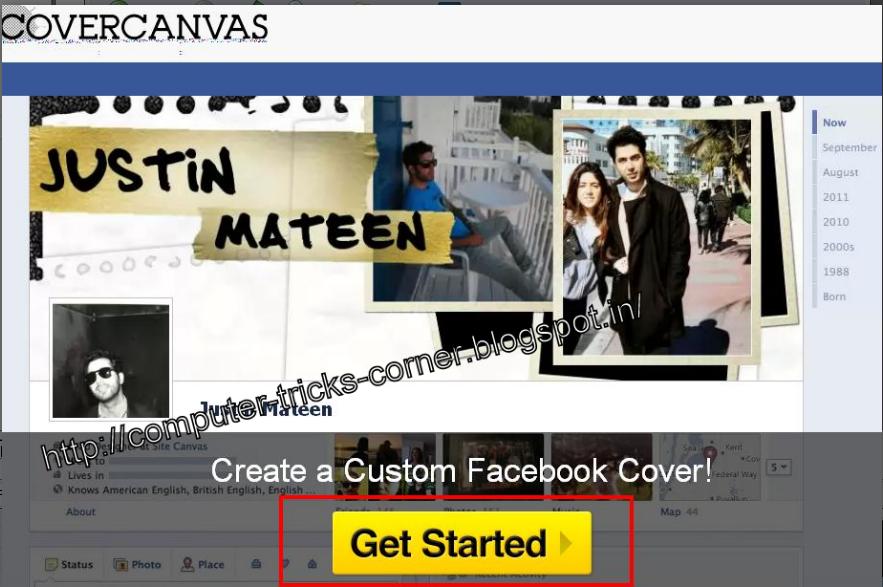
So In this post we will discuss about how one can create a standout, cool and best timeline covers with a cool facebook app Cover Canvas with just one click.


  • Just Login to your facebook account 
  • then goto Cover Canvas and click on Get Started
  • Click on Allow 
  • Now choose a cover you like.
  • And click on Make My Cover
  • Now goto your facebook timeline and change your timeline cover 


Monday, February 6, 2012

How to Generate thousands of genuine email ids for free


Hi, here I am once again, with a new trick about How to generate 1000's of genuine e-mail id's with in 5 to 10 minutes , all you have to do is just follow these simple steps  . its up to you that how you want to use them . So be careful about it.  :-)


Requirements :-

LETS START GENERATING E-MAIL ID'S :-
  •  Go to http://www.google.com, click on "Search settings" in the top right corner and change the number of results to display "100" per page, now click on Save preferences.
  • Now in  the search bar type a keyword(s) and the e-mail extension in speech marks For example :- xyz"@gmail.com" What it will do is search for web-pages that contain Gmail e-mail adresses and that are also related  with your keyword. The speech marks around "@gmail.com" make sure that "@gmail.com" is on every web page that is a result of the search.
    • You can also search single websites for e-mail adresses as shown on the example :- site:twitter.com "@gmail.com" The  example shown above will search the whole of twitter.com for"@gmail.com" email adresses. 
  • Now With your results in focus, click the arrow at the side of the AutoPager icon as shown in the picture below. Then goto "Immediately load > All pages" .as shown in screenshot. With your search results still in focus, scroll all the way down and AutoPager should load the next page of results onto the same  page you are currently on. Keep scrolling till all pages have loaded onto the samepage.


    • Press "ctrl + a" to select all of the pages then press "ctrl + c" to copy the results. With the results still in the clipboard (Still copied) go to http://www.skymem.com/ or Click here  . Paste your results into the first box which says "1. Put text with email addresses here:" and just click on Start Extracting Emails Button on top of that box. The settings should already be correct with "unique emails" and "sortticked" So no need to Touch that option. 
    • The e-mail adresses should show in the Results box (3rd box)  almost instantly.


    • Now copy the results from the results box paste them into Notepad. Sometimes the e-mail address seem to end in ".com." instead of just".com" so in notepad go to "Edit > Replace" and in the "Find what" text-box type ".com." without the  speech marks("") in the "Replace with" textbox type".com" , without the speech marks.

    Thursday, January 26, 2012

    how to access facebook through google plus or Add the Facebook Stream to your Google+ Profile


    Do you want to access Google plus and facebook under the same tab on same page.? ??
    then surely this post will help you to add your facebook account to google plus and get all the Facebook stream to Google plus. all you have to do is install a plugin which will only gonna take less then 2minutes


    How to access Facebook through Google plus:-


    • Visit  here and Download .GOOGLE+FACEBOOK browser extension and install it(only gonna take less then 2min)
    • Now login to your Google plus account   
    • You will see a Facebook button on top (see in image ) click on  button [button no. 1. in image]
    • and then click on  " f Connect with Facebook " (see in image [button no. 2.])


    • Now click on Allow

    • That's all now you can access facebook through google plus . to access facebook just click on Facebook button (see in image)


    Tuesday, January 3, 2012

    How to use colorful text / words / alphabets in facebook chat


    How many times you start chat in facebook by " Hi " ..? ?? I think most of time..! now in this post i'll tell you how you can add colorfull text in facebook chat  without any software and addon just to impress your friends .! !!

    First of all let me show you  a example :-

     In this chat box you can see HI in pink color it looks nice, at-least batter then that ordinary boring " hi " .So want to know how to do it:-


    How to write HI in pink color :-
    •  just copy the below code :-

      [[111356865552629]]  [[109294689102123]]
    • and paste it in chat window and simply hit enter..!


    How it works:-
      Actually these are not codes these are username of facebook pages.For full explanation please visit green link at the bottom of post
    Till then assume that these are codes . :D :-)
    [[107015582669715]]  = A
    [[116067591741123]]  = B
    [[115602405121532]]  = C
    [[112542438763744]]  = D
    [[115430438474268]]  = E
    [[109225112442557]]  = F
    [[111532845537326]]  = G
    [[111356865552629]]  = H
    [[109294689102123]]  = I
    [[126362660720793]]  = J
    [[116651741681944]]  = K
    [[115807951764667]]  = L
    [[106596672714242]]  = M
    [[108634132504932]]  = N
    [[116564658357124]]  = O
    [[111669128857397]]  = P
    [[107061805996548]]  = Q
    [[106699962703083]]  = R
    [[115927268419031]]  = S
    [[112669162092780]]  = T
    [[108983579135532]]  = U
    [[107023745999320]]  = V
    [[106678406038354]]  = W
    [[116740548336581]]  = X
    [[112416755444217]]  = Y
    [[165724910215]]        = Z


     Like in above case we wrote HI 

    HI :-   [[111356865552629]]  [[109294689102123]]
                             H                     I

    So you can create any word using these codes like:-

    COMPUTER :- [[115602405121532]] [[116564658357124]] [[106596672714242]] [[111669128857397]] [[108983579135532]] [[112669162092780]] [[115430438474268]]  [[106699962703083]]

    TRICKS :-  [[112669162092780]] [[106699962703083]] [[109294689102123]] [[115602405121532]] [[116651741681944]] [[115927268419031]]

    CORNER :- [[115602405121532]] [[116564658357124]]  [[106699962703083]] [[108634132504932]]  [[115430438474268]] [[106699962703083]]


    Other useful codes:-


    BIE :- [[116067591741123]] [[109294689102123]] [[115430438474268]]


    NOTE:- 
    • Above codes will work only on Facebook chat and private messages . Codes will not work on status updates.!
    • While creating a word using above codes remember to give space between 2 codes for eg:-
      • HI :-   [[111356865552629]][[109294689102123]] ( WRONG METHOD  there is no space between 2 codes and it will appear as a code) 
      • HI :-   [[111356865552629]]  [[109294689102123]] ( RIGHT METHOD
    • This will not work while using facebook on mobile
    :-)

    Click here to know how this trick works and how you can use your friends profile pic in chat


    Friday, December 30, 2011

    How to access multiple Gmail accounts in same browser

    How many Gmail accounts do you have..? ?? 1 or 2 or more than that..! may be more than 1 and its quite logical because its very inconvenient to use same mail ID for personal and professional use..!
    So we have to use different E-mail id's and Gmail is  most preferred one because of its exclusive features ..! Earlier gmail doesn't allow users to access multiple accounts at same time on same browser but In this post i'll show you how to access multiple gmail accounts on same browser without using any software..!

    Follow steps below to access multiple gmail accounts on same browser:-


    • After logging in Open:- Account Setting (From sub-menu you get  clicking on image on Right top )
    • Now click on Account Overview  
      • then  in Security section Click Edit  in Multiple Sign-in option


    •  Now select On and tick all three check boxes and click on Save
    •  Now signout from your gmail account and login again.
    • And click on Your Google Profile Image (right top) and click on Switch Profile
    • Now click on:- Sign in to another account

    •  Now  simply log in to your second gmail account
    •  Now you have added two mail id's to your gmail account to switch your account just Click on Switch account by clicking on your mail id on top right  and then select one you want to access.

    Note:- this trick will only work for gmail account .. it will not work on other Google accounts like blogger, adsense , picasa .
     thxx..! !! :-)

    Sunday, December 25, 2011

    How to add a music palyer to blogger blog


    MusicPlaylistView Profile
    Create a playlist at MixPod.com


    Do u like music.. ! !! i'm sure you do, who don't love it.,so do your visitors . ok, why don't add  add  music player in your blog? In this post I will explain how to add music player in your  blog. . The music player i'm about to explain is  MixPod. With this service you will be able to show your music player in your blog.
     Let's start:-

    •  Go to MixPod  Click Sign Up in the top-right


    •  Now fill all the info

      • Fill yourYour Email:
      • New Password:
      • Re-type Password:
      • Birthdate:
      • I am:(Gender)
      • Location:(Country)
    • After filling all the info click on Sign Up


    • Now   Just follow 3 steps: -Add Music (Adding Playlist), -Customize (Skins, Colors and Styles, Settings), -Save Playlist
      • 1.click on:- 1. Add Music
        • Search for the songs you want to add to the playlist
        • After searching click on + sign to select the song
        • You can add up to 200 songs per playlist


      •  2. Customize  After selecting songs for your playlist click on  to edit your player's colors & styles  at Music Playlist Skins. 


      •  If you done all of it, click SAVE (get code)


    •  In the left options, click Blogger


    • Copy the code, then Paste on your HTML Widget or in a post in html mode. Save! Or follow steps below code box.


    •  Done..! !! :-)

    Friday, December 23, 2011

    How to sign up multiple times to a website with one/same gmail account

    Sometimes you want to create multiple accounts in a website but you require different email id. In this very easy and simlple trick i'll share how you can create multiple accounts in some websites with only one gmail account. The basic logic behind the trick is some websites treats .(dot) as different email id but gmail treats them same.because gmail ignores .(dot) from your email id
     for examle:-
    computertrickscorner@gmail.com      
    computer.trickscorner@gmail.com     
    computer.tricks.corner@gmail.com    
    com.pu.tertr.icksc.o.r.ner@gmail.com


    if i'll use any of these email id's to sign in to my gmail  account gmail will let me in to the account computertrickscorner@gmail.com because gmail ignores .'s(dots) in your id. but many websites(not facebook)treats them as different id and you can access multiple accounts in a website through one email id.

    This trick is only for gmail accounts and will not work on yahoo and hotmail etc. To know how to access multiple gmail accounts at same time on same browser click here

    Thursday, December 22, 2011

    How to add your blog to your facebook page


    This post is about how you can add your blog to your facebook page using a facebook app called " networked blogs ". Networked blog is a facebook app which is used by many blogger's to permote there blog at facebook. When you will add your blog to your fan page using networked blog it will automatically shared in you page under your Blog tab.

    Now how you can add your blog to your facebook page:-

    • After clicking on " Register a Blog " This window will open now copy your blog link and paste it in the box .


    • Now fill all the required information

      After filling all the required info click on:- Next


    • After clicking next you will be asked whether you author of the blog or not? click on YES

    • Then you will be asked for confirmation (confirmation for that you are the owner of blog or website)for confirmation you have two options click on 2nd option . 
      • Ask friends to confirm you( instruction about 1st option mentioned in video at bottom of this post)
      • Or, install the widget ( CLICK ON THIS OPTION, RECOMMENDED,EASY TO FOLLOW )
    Click on:- Or, install the widget

    • Copy the Option 1 code then login to you blog if not already->goto layout->add a gadget->html. and paste code->save arragements   


    • Now come back to Networked blog window and click on Verify Now


    • Now goto your FACEBOOK FAN PAGE where you added the BLOG and click on Blog->Edit tab->and tick your blog->click on save changes


    How to add you blog to facebook page:-


    Tuesday, December 13, 2011

    how to enable DISQUS COMMENT BOX in blogger or how to use DISQUS COMMENT BOX

    DISQUS is the best COMMENTING PLATFORM which gives total freedom to all of your visitors no matter where they came from ( facebook ,twitter, online search or from where ever). they can give there views with having a identity. DISQUS COMMENT BOX also gives your blog a great look and improve your blogs interface .Disqus lets your visitor to comment as by using any of following ids.

    So all the visitors will have lots of option to choose from and will have there unique identity. 
    they can also use OPENID or GUEST id to submit there views if they want to..!

    NOW HOW TO ENABLE DISQUS COMMENT BOX IN YOUR BLOG:-
    It will only gonna take 4-5mins to setup DISQUS COMMENT BOX in your blog

    • First of all goto disqus and register your blog click here to register your blog.
    THIS WINDOW WILL OPEN
    Fill all the required  fields and click on ' CONTINUE '
    • After clicking " CONTINUE " the following window will open . in this window simply click on " continue "(at bottom of the window). no need to fill any field. just click on "CONTINUE"
    IN THIS WIDOW NO NEED TO FILL ANYTHING SIMPLY CLICK ON " CONTINUE


    • After clicking on " Continue " following window will show up, in this window click on "BLOGGER ".


    CLICK ON " BLOGGER "


    • After clicking on " Blogger " following window will show up, in this window simply click on the tab under 3rd option which says " Add site " your_site_name" to blogger.
    click on the tab under 3rd option which says " Add site " your_site_name" to blogger.


    • Now  select a blog in which you want to add DISQUS COMMENT BOX . fill the title and click on " add widget ". 

    IN THIS WINDOW CLICK ON " Add Widget "


      • Now you can see DISQUS COMMENT BOX  in your layout and as well as in your blog..!

      • To check it you have to click on a particular post. in you blog...! !! :-)